Kids Coloring is a free browser game offering over 40 tap-to-fill outline drawings, from simple balloons to detailed mandalas. It suits young children practicing motor skills and adults seeking a quiet, meditative break without timers or scores. The bare-bones tool rewards patience and a tolerance for small interface quirks.
I opened Kids Coloring expecting maybe three pages of a pre-drawn butterfly and a single crayon. Instead I landed on a grid of more than forty outline drawings, everything from cupcakes to fire trucks to slightly lumpy-looking dinosaurs. The first minute feels quiet and a little chaotic. You don't need to sign in or click past a tutorial. The page just dumps you in front of a black-and-white sailboat and waits. I noticed I was holding my finger above the screen without meaning to, because the blankness of the canvas feels like a small dare.
How the coloring loop actually works
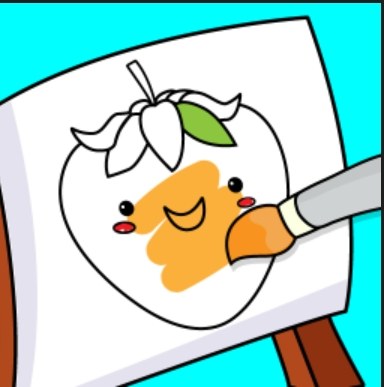
The game gives you one outline at a time, and a row of colored circles along the bottom. Tap a color, then tap a region of the drawing, and that area floods with your chosen shade. There's no blending, no gradient, no pressure sensitivity. It's pure tap-to-fill. If you miss the region you wanted and color the sky orange by accident, you either undo with the back-arrow button or you learn to live with it. I found myself caring more than I expected about getting the leaves green before the trunk brown, even though nothing enforces an order.
You're not optimizing for score. There's no timer, no star rating, no currency. The only thing you're optimizing for is the moment when the last white patch disappears and the drawing suddenly looks complete. That moment is weirdly satisfying, especially on drawings with tiny fiddly segments like flower petals or the teeth of a gear. A few drawings have regions so small I had to zoom in on my phone just to hit the right spot, and I missed three times before I got the hang of tapping with the pad of my thumb instead of the tip.
When you finish a page, a small checkmark appears on the drawing's thumbnail in the gallery. That's your progress system. No fanfare, no badge pop-up, just a tiny visual marker that you did that one. I finished a rocket ship and immediately wanted the ice cream cone next to it to have a checkmark too, which is how I ended up coloring six pages in one sitting without meaning to.
The gallery and picking what to color
The main screen is a scrollable grid of line-art thumbnails. Categories aren't labeled, but you can tell the groupings if you squint: animals cluster near the top, vehicles in the middle, food items scattered around, and a few holiday-themed ones like a pumpkin and a gift box tucked near the bottom. Tapping a thumbnail loads that drawing instantly. No loading bar, no transition animation, just a blink and you're in.
What I appreciated after ten minutes is that the drawings aren't babyish. Some are simple enough for a three-year-old, like a single balloon or a basic fish, but others have enough segments to keep an adult's hand busy while listening to a podcast. The mandala-style flower took me almost eight minutes because it has concentric rings of petals that all look similar, and I kept losing track of which ones I'd already colored. I had to develop a system: outside ring first, then work inward, changing colors every two rings so I could see my progress. Nobody told me to do that. The game doesn't suggest it. But the constraint of the tool makes you invent your own little methods.
Mistakes that can derail a session
The most common mistake I made early on was tapping a color and assuming it would stay selected. It does not. If you tap a region and your finger grazes a different color in the palette on the way there, you'll fill the region with whatever your finger touched last. I turned a perfectly good elephant bright pink three times before I learned to lift my hand higher between palette and canvas.
The undo button exists, but it's small and tucked in the top-right corner on desktop and harder to reach with a thumb on mobile. It also only goes back one step. If you color a region, then color another region, and then realize the first one was wrong, you can't jump back two steps. You have to recolor the mistake manually by picking the right shade and tapping the region again. This is fine for big areas like a sun or a car body. It is maddening for zebra stripes. I abandoned a zebra halfway through because I'd confused the black and white sections and the undo button wasn't saving me.
Another trap: the palette resets to a default selection when you switch drawings. If you loved a specific shade of teal from the turtle page, you won't find it waiting on the train page. The color sets appear to be consistent across all drawings, but the game doesn't remember your recently used colors, so you have to hunt for your favorites each time. I started mentally noting the position of the purple I liked (fourth from the right, second row) so I could grab it faster on the next page.
Device notes: phone versus desktop
I tested this on an iPhone and a laptop. The experience splits pretty hard. On desktop, you have a mouse cursor, which means pinpoint accuracy on tiny regions. The gallery grid is wider, so you see more thumbnails without scrolling. The whole thing feels calmer. On mobile, the palette sits at the bottom of the screen and your thumb naturally covers the last few colors when you reach for them. I had to hold my phone with two hands: left hand cradling, right index finger tapping. Not uncomfortable, but not the casual one-thumb scroll I expected.
Zooming on mobile is a two-finger pinch, which works smoothly, but the drawing snaps back to full-frame if you lift your fingers for more than a second. That means you can't zoom in and leave it zoomed while you color. You have to zoom, hold, tap a region, and then the view resets. I found myself doing a repetitive zoom-tap-zoom-tap rhythm that felt a bit like a minigame the developer didn't intend. On desktop, I just leaned closer to the screen and was fine.
There's no sound in the version I played. No music, no click feedback, no celebratory chime when a page is done. On one hand, that makes it a great game to play while half-watching a show or sitting in a waiting room without headphones. On the other hand, the silence can feel stark if you're used to apps that coo at you every time you do something right. I actually preferred the quiet. It made the checkmark at the end feel earned rather than performed.
Who should bother and who should skip
Kids Coloring is not going to hold the attention of someone who wants progression systems, unlockables, or any kind of narrative. If you need a game to tell you you're doing a good job, this isn't it. The emotional payoff is entirely internal: you look at a fully colored ice cream cone and feel a small, private sense of order restored. That's the whole transaction.
For young children who are still learning motor control, the tap-to-fill mechanic is forgiving enough to be encouraging and precise enough to be mildly frustrating in a good way. My five-year-old nephew tried the fire truck page and got annoyed that he kept coloring the ladder the same red as the truck body, but he also figured out the undo button faster than I did and finished the page with a color scheme that looked like a sunset exploded. He didn't care that the wheels were purple. He cared that the checkmark appeared.
Adults looking for a meditative break might find value here, but only if they can tolerate the lack of polish. The drawings are charming but clearly stock-style vectors. A few have slightly asymmetrical lines where the illustrator's hand wobbled. I found that endearing. If you find it sloppy, you'll bounce off within two minutes. This is a free browser game, not a premium coloring app. Keep expectations aligned with that.
A practical 10-minute practice plan
If you're new and want to get comfortable fast, here's the session I settled on after a few days of poking at this thing:
- Minute 1-2: Pick a simple drawing. The balloon or the basic fish. Don't try to be clever with colors. Just fill every region with the first color that feels right. Your goal here is to learn how the tap targets feel and where the undo button lives.
- Minute 3-5: Move to a medium-complexity drawing, something with 10-15 regions. The sailboat or the cupcake. This time, decide on a palette before you start. Pick three colors and stick to them. Notice how the drawing looks more cohesive when you limit your choices. This teaches you the palette-hunting skill I mentioned earlier.
- Minute 6-8: Attempt one of the trickier pages. The flower mandala, the gear, or the dinosaur with scales. Your goal is not to finish it. Your goal is to color at least half the regions without using undo more than twice. Pay attention to which regions are hardest to tap and whether zoom helps or hurts.
- Minute 9-10: Return to your first drawing from minute one. Open it fresh. Color it again, but faster and with different colors. See if the muscle memory of the regions makes the second pass feel smoother. If it does, the game has taught you something without you noticing.
That last step is the one that sold me on keeping this bookmarked. The game doesn't track speed, but I could feel myself getting quicker, more decisive, less annoyed by the small palette buttons. The friction that bugged me in the first session became part of the rhythm by the third. Kids Coloring is basically a very gentle fidget toy dressed up as an art activity. It won't change your life, but it might fill fifteen quiet minutes better than scrolling social media, and sometimes that's exactly what a browser game should do.